

Card
The Card component renders a linked preview for another page or URL. For local pages, Retype can build the card from page metadata. You can also override individual values directly on the Card.
[!card](/blog/2026-05-26-whats-new-in-retype-v460.md)
Syntax
Use the destination in parentheses for the link target. Add an optional layout shorthand or attribute list inside [!card ...].
[!card](path/to/page.md)
[!card vert](path/to/page.md)
[!card compact](path/to/page.md)
[!card signal](path/to/page.md)
[!card snap](path/to/page.md)
[!card layout="compact"](path/to/page.md)
[!card title="Custom title" text="Custom text" target="blank"](https://retype.com/)
For local pages, Retype can automatically resolve:
titlefrom the page titletextfrom the excerpt or descriptionimagefrom the page imagekickerfrom categories or parent navigation labelsfooterfromdateorcreated
If you override only one field, the remaining fields still fall back to page metadata when available.
The link target always comes from the destination in parentheses. There is no separate link Card attribute.
Use shorthand labels such as vert only when no other Card properties are set. If you combine a layout with custom properties, set it with the layout attribute, such as layout="vert", layout="vertical", layout="compact", layout="signal", or layout="snap".
Footer
Overrides the footer rendered below the Card content. The footer property is used by horizontal and vertical Cards. Compact, signal, and snap Cards ignore footer.
For local pages, Retype can automatically resolve the footer from date or created page metadata.
FooterAlign
Sets the alignment of the Card footer content. The footerAlign property is used by horizontal and vertical Cards when a footer is configured. Compact, signal, and snap Cards ignore footerAlign because they do not render a footer.
The supported values are left, center, and right. Default value is left.
Icon
Overrides the Card icon. The icon property is rendered by compact, signal, and snap Cards.
The icon can be an Octicon name, an Emoji shortcode, an image file, or an inline SVG.
[!card title="Retype website" text="Visit retype.com" icon="home" layout="compact"](https://retype.com/)
[!card icon=":rocket:" layout="compact"](/guides/getting-started.md)
Image
Overrides the Card image. The image property is used by horizontal, vertical, and snap Cards. Signal and compact Cards ignore image.
[!card layout="vert" image="/static/community-hero.png"](/guides/blogging.md)
Kicker
Overrides the small label rendered above the Card title. The kicker property is used by horizontal, vertical, and signal Cards. Compact and snap Cards ignore kicker.
For local pages, Retype can automatically resolve the kicker from categories or parent navigation labels.
[!card layout="vert" kicker="Release note"](/blog/2026-05-26-whats-new-in-retype-v460.md)
Layout
Cards support five layout modes: horizontal, vertical, compact, signal, and snap.
Horizontal (default)
The default layout shows the image beside the content and works well for a single prominent card.
[!card](/blog/2026-05-26-whats-new-in-retype-v460.md)
Vertical
Use vertical or vert for stacked cards with the image above the content. Consecutive vertical cards form a responsive group automatically.
[!card vert](/blog/2026-05-26-whats-new-in-retype-v460.md)
[!card layout="vertical"](/blog/2026-05-25-retype-for-obsidian.md)

Compact
Use compact for a smaller card that flows inline with other compact cards. Compact cards do not render an image, kicker, or footer. When text is overridden, it is rendered as plain text, whereas the default and vert cards will render basic markdown syntax.
[!card compact](/guides/getting-started.md)
[!card layout="compact"](/guides/installation.md)
[!card title="Retype website" text="Visit retype.com." icon=":smile:" layout="compact"](https://retype.com/)
Signal
Use signal for a compact navigation-style row. Signal auto-resolves title and text from local page metadata and renders a small icon beside the title.
[!card layout="signal" text="Install Retype in seconds using npm, yarn, or dotnet"](/guides/installation.md)
[!card layout="signal" title="Quick Start" text="Get your first Retype site running in minutes"](/guides/getting-started.md)
[!card layout="signal" title="CLI Reference" text="All commands, flags, and options for the Retype CLI"](/guides/cli.md)
[!card layout="signal" icon="gear" title="Configuration" text="Customize your site with the retype.yml project file"](/configuration/project.md)
[!card layout="signal" text="Enrich your content with tabs, callouts, cards, and more"](/components/components.md)
[!card layout="signal" icon="server" title="Hosting" text="Deploy your site to GitHub Pages, Netlify, Cloudflare, and more"](/hosting/github-pages.md)
Signal also supports a kicker to add a custom click-thru label:
[!card layout="signal" kicker="Install"](/guides/installation.md)
[!card layout="signal" kicker="Release"](/blog/2026-03-17-whats-new-in-retype-v430.md)
[!card layout="signal" title="Retype website" text="Signal supports title, text, and kicker together." icon="rocket" kicker="Visit"](https://retype.com/)
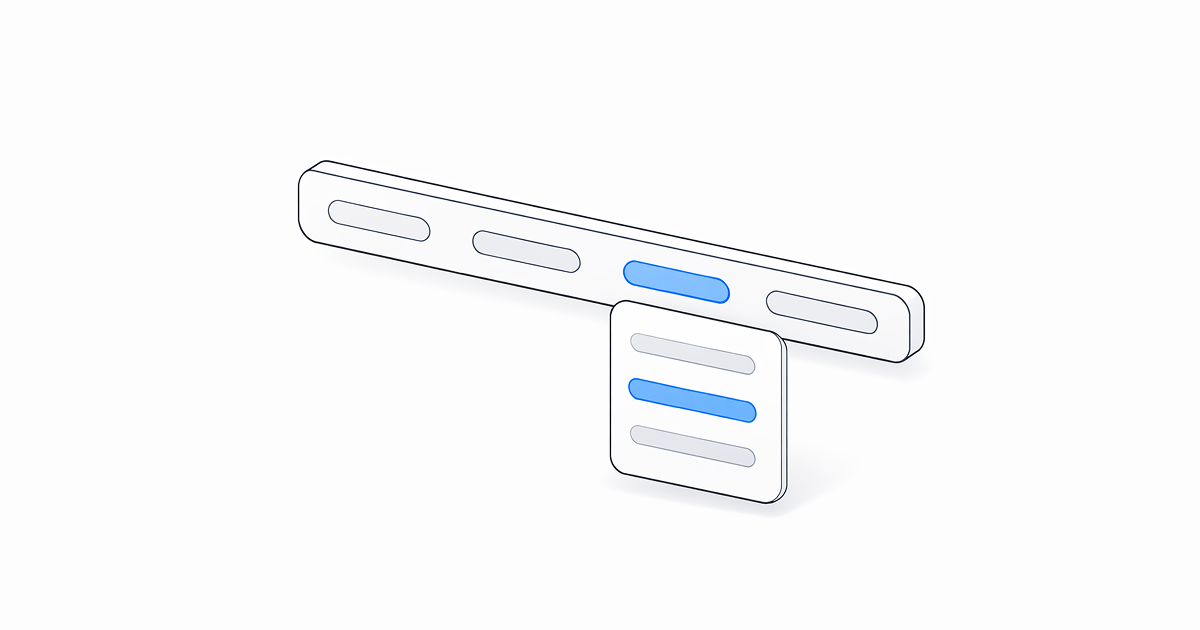
Signal supports title, text, kicker, and icon or image.
Snap
Use snap for a tile-style card with a prominent icon or image above a short title. Snap is well suited for app pickers, integration lists, and icon-based navigation. Consecutive snap cards automatically form a responsive row.
Only title and icon (or image) are rendered. The text, kicker, and footer properties are ignored.
[!card layout="snap" title="Notion" icon="https://cdn.simpleicons.org/notion/111111"](https://www.notion.so/)
[!card layout="snap" title="Evernote" icon="https://cdn.simpleicons.org/evernote/00A82D"](https://evernote.com/)
[!card layout="snap" title="Apple Notes" icon="https://cdn.simpleicons.org/apple/111111"](https://www.apple.com/macos/notes/)


For local pages, snap auto-resolves the icon from page metadata and falls back to the page image when no icon is set.
[!card layout="snap"](/guides/getting-started.md)
[!card layout="snap"](/blog/2026-03-17-whats-new-in-retype-v430.md)
[!card layout="snap" title="Remote snap card" icon="home"](https://retype.com/)
Target
Sets the target attribute of the Card link and specifies which window or tab opens the link.
[!card title="Retype" text="Open the Retype website in a new tab." target="blank"](https://retype.com/)If no target is configured, the link opens in the current tab.
The target can be set to any value, although blank is common and opens the link in a new tab. Retype automatically transforms blank into _blank, which is the browser value for opening a hyperlink in a new tab.
Text
Overrides the Card description text. If no text is configured for a local page, Retype uses the target page excerpt or description.
Horizontal and vertical Cards render basic markdown syntax in text. Compact and signal Cards render plain text. Snap Cards ignore text.
[!card layout="vert" text="Read the `v4.1` release summary."](/blog/2026-05-25-retype-for-obsidian.md)
Title
Overrides the Card title. If no title is configured for a local page, Retype uses the target page title.
The title property works with all Card layouts.
[!card layout="vert" title="Start with v4.2"](/blog/2026-05-26-whats-new-in-retype-v460.md)
List pair cards
You can create an array of cards from list pairs by using a wikilink as the top-level list item and a nested list item for the description.
The link must be a wikilink to a local page in your project. The nested text is always configured manually and is not pulled from the linked page.
- [[Blogging]]
  - Create blog posts and let Retype generate the rss feed and pages automatically.
- [[Installation]]
  - Install the Retype CLI with npm, yarn, or dotnet, and you'll be up and running in minutes.
- [[Community]]
  - Get a free Retype Pro key for use in GitHub Pages projects.
Template-driven cards
The Retype templating engine can read from content collections, which makes it easy to generate Cards dynamically instead of hardcoding paths.
The following sample demonstrates how to display the latest blog post by passing its filePath to the Card component.
[!card]({{ content.blog.posts[0].filePath }})
The content.blog.posts array contains all blog posts in your project sorted by date, newest first.
Samples
Automatic and manual versions of the same vertical card
The first card uses page metadata. The second manually configures the same values to provide a side-by-side comparison.
[!card vert](/blog/2026-03-02-whats-new-in-retype-v410.md)
[!card kicker="Release" footer="2026-03-02" image="/blog/images/2026-03-02-whats-new-in-retype-v410.png" title="What's NEW in Retype v4.1" layout="vert" text="Retype `v4.1` has been primarily a community-driven release shaped by suggestions and feedback from Retype users. A huge thank you to the Retype community for your contributions and ideas that made it into this release."](/blog/2026-03-02-whats-new-in-retype-v410.md)
Compact cards with manual values
Compact cards are useful when you want a smaller inline set of links, including cards for external URLs.
[!card compact](/guides/getting-started.md)
[!card title="Install Retype" text="Install the Retype CLI." layout="compact"](/guides/installation.md)
[!card title="Retype website" text="Visit retype.com." icon=":smile:" layout="compact"](https://retype.com/)
Action
A Card can use an Action as its destination. If the action returns a link during the build, the Card becomes a normal link to that URL.
[!card title="Edit on GitHub" text="Open this page in GitHub"](action:edit-on-github)