

Actions
Actions add reusable behavior for navigation links and page action menus. An action can copy the current page link, print the page, open the Markdown source, or build a custom URL from the current page context.
Retype includes several built-in actions and also discovers custom action definitions from the _components/actions/ folder in your project.
Page action button
The actions.items configuration controls the menu options on the page action menu button added to the right of the page title.
Use actions.enabled to toggle the page action menu button globally. Default is true.
When actions.enabled is set to false, Retype does not render the page action menu button even if actions.items are configured.
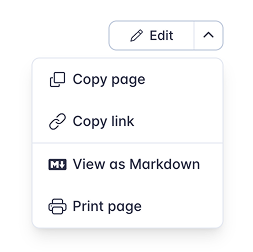
Menu item separators are configured using type: separator.
Each item supports the same common link properties as top-bar links, including text, link, action, icon, iconAlign, target, title, and description.
Use actions.items for the page action menu. To run actions from top-bar links, footer links, or nested header menu links, use the action property on those link items instead of link.
See actions and links.action in the project configuration reference.
Built-in actions
Retype ships with the following built-in actions.
copy-page-markdown
The copy-page-markdown action fetches the current page Markdown export and copies the content to the clipboard.
actions:
  items:
    - text: Copy page
      action: copy-page-markdown
      icon: copy
copy-page-link
The copy-page-link action copies the current page URL to the clipboard.
actions:
  items:
    - text: Copy link
      action: copy-page-link
      icon: link
copy-to-clipboard
The copy-to-clipboard built-in action copies the current page URL. For custom values, create an action that calls the clipboard
steps:
  - handler: clipboard
    with:
value: "{{ page.title }}"actions:
items:
- text: Copy title
action: copy-page-title
icon: copyprint-page
The print-page action opens the browser print dialog.
actions:
  items:
    - text: Print page
      action: print-page
      icon: brand-printer
scroll-to-top
The scroll-to-top action smoothly scrolls to the top of the page.
actions:
  items:
    - text: Scroll to top
      action: scroll-to-top
      icon: arrow-up
share-page
The share-page action opens the native browser or operating system share panel for the current page when supported. If native sharing is not available, Retype copies the current page URL to the clipboard.
view-page-markdown
The view-page-markdown action opens the generated Markdown export for the current page in a new tab.
actions:
  items:
    - text: View as Markdown
      action: view-page-markdown
      icon: markdown
Custom actions
Custom actions are defined in _components/actions/. Retype reads .yml and Markdown files with YAML frontmatter from that folder.
The action id is taken from the optional id field. If no id is provided, Retype uses the filename without the extension.
data:
  prompt: Read and summarize the content of this page on {{ project.meta.siteName }}. Then help answer follow-up questions about it.

steps:
  - with:
link: https://chatgpt.com/?q={{ prompt | html.url_encode }}%0A%0A{{ page.url | html.url_encode }}actions:
items:
- text: Open in ChatGPT
icon: brand-openai
action: open-in-chatgpt
target: blankThe action above does not use a browser handler. Retype resolves it during build and uses the final link output as the menu item link.
Markdown files can also be used when frontmatter is preferred:
---
steps:
  - with:
      link: https://github.com/retypeapp/retype/edit/main{{ page.filePath }}
---actions:
items:
- text: Edit on GitHub
icon: mark-github
action: edit-on-github
target: blankAction definitions
An action definition can include metadata, inputs, outputs, data, and steps.
name: Copy page Markdown
description: Gets the page Markdown and copies it to the clipboard.

steps:
  - id: get-page-markdown
    handler: fetch
    with:
      url: "{{ page.markdown }}"

  - id: write-to-clipboard
handler: clipboardsteps
Each step can call a built-in handler, call another action, or return a with object.
steps:
  - id: get-page-markdown
    handler: fetch
    with:
      url: "{{ page.markdown }}"

  - id: write-to-clipboard
handler: clipboardIf a step does not include with, Retype passes the previous step output into the next step. This makes simple chains concise.
Template context
Action templates can use page, project, content, inputs, and previous step data.
Component action
Markdown links and linkable components can run actions too. Configure the action attribute, or use the action:<name> destination shorthand.
[Print page](action:print-page)

[!button action="print-page" text="Print page"]
[!button Print page](action:print-page)

[!badge action="print-page" text="Print page"]
[!badge Print page](action:print-page)
Cards work well with build-time actions that return a link.
[!card title="Edit on GitHub" text="Open this page in GitHub"](action:edit-on-github)Reference links, file downloads, and linked images can also use the action:<name> destination shorthand.
[!ref Print page](action:print-page)
[!file Print page](action:print-page)
[](action:print-page)Custom actions in _components/actions/ can return a link and component-specific properties. For example, the following action builds an Edit on GitHub Button during the build and sets the Button text, variant, corners, and icon.
---
steps:
  - with:
      link: https://github.com/retypeapp/retype/edit/main{{ page.filePath }}
      text: Edit on GitHub
      variant: success
      corners: pill
      icon: mark-github
---
[!button Edit](action:edit-on-github)handlers
Handlers are predefined browser-side functions that can be called from an action step. They provide common client-side behavior without allowing arbitrary JavaScript execution.
clipboard
The clipboard handler copies a string value to the clipboard. The input can be named value, content, text, url, href, link, or target.
steps:
  - handler: clipboard
    with:
      value: "{{ page.title }}"
The handler returns an object with success and value.
fetch
The fetch handler gets text content from a URL. The input can be named url, href, link, target, or value.
steps:
  - id: get-page-markdown
    handler: fetch
    with:
      url: "{{ page.markdown }}"

  - handler: clipboard
The handler returns an object with success, content, and url.
The print handler opens the browser print dialog.
steps:
  - handler: print
The handler returns an object with success.
scroll
The scroll handler scrolls to a target. The target input can be named target, href, url, link, or value.
steps:
  - handler: scroll
    with:
      target: "#introduction"
      behavior: smooth
The handler returns an object with success and target.
share
The share handler opens the native browser or operating system share panel. The input can include title, text, and url.
If native sharing is not available, Retype copies the url value to the clipboard. The handler returns an object with success, and may include fallback and value when the clipboard fallback is used.